How do I use the CLI to upload support case attachments?
Environment
- Red Hat Enterprise Linux (RHEL) Version 7 and newer
- Red Hat OpenShift version 4 and newer
Issue
- Uploading SOSreports, MustGathers, crash dumps, log files, and other files via the Red Hat Customer Portal GUI is tedious and time consuming because system administrators must copy this information from the affected system(s) to a desktop and then upload from the desktop.
- Sometimes customer firewall rules prohibit desktop uploads.
- System administrators need a convenient way to do these uploads directly from affected systems via CLI.
Resolution
- Generate your Offline Token. Do this one time. Not once per case, but one time, period, for all cases.
- Launch a web browser and go to
https://access.redhat.com/management/api. - Click "
Generate Token." - This gives a long-lived offline token that will never expire unless
- 30 days passes without using it, or
- you generate a new token.
- Copy the token, paste it into a txt file, and store the file someplace convenient, but not public.
- This token represents you to the Red Hat Customer Portal, so protect it.
- If it becomes public, generate a new token.
- This is the only time you will need a browser.
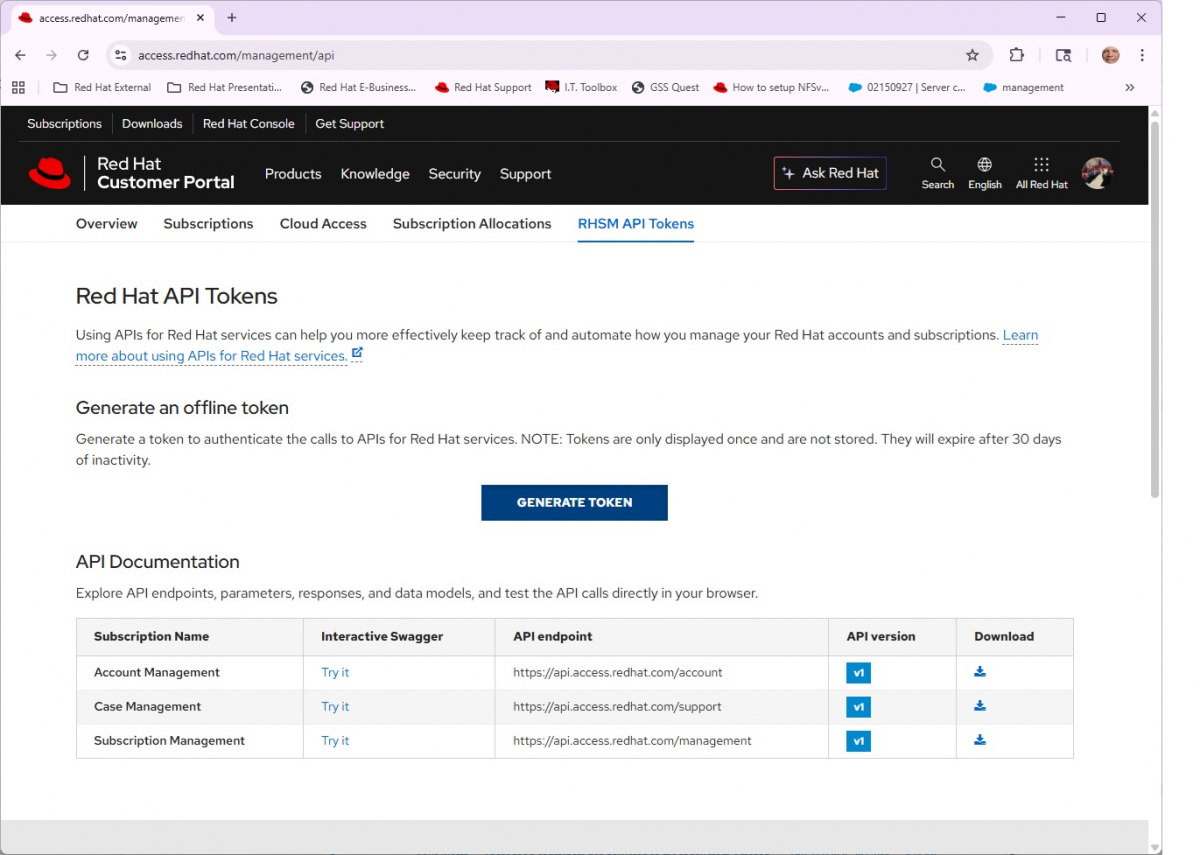
- Launch a web browser and go to

-
Get your Bearer Token using the CLI.
- This Bearer Token will only last a few minutes, so proceed quickly to step 3 after this step.
- Performing this step more often than every 30 days should keep your long-lived offline token from step 1 above alive.
- Paste your long-lived offline token from step 1 above for the
<OFFLINE_TOKEN>placeholder below.
bearer_token=$(curl -s --request POST \ 'https://sso.redhat.com/auth/realms/redhat-external/protocol/openid-connect/token' \ --data-urlencode 'client_id=rhsm-api' \ --data-urlencode 'grant_type=refresh_token' \ --data-urlencode 'refresh_token=<OFFLINE_TOKEN>' \ | jq -r '.access_token') -
This step has two choices. Choose your method
- Option A uses direct HTTPS Upload (recommended — simplest, but limited to 1 GB.)
- Upload files directly to a case with a single curl:
curl -s -X POST \ 'https://access.redhat.com/hydra/rest/cases/<CASE_NUMBER>/attachments' \ -H "Authorization: Bearer $bearer_token" \ -F "file=@/path/to/sosreport.tar.xz" \ -F "description=sosreport from server xyz"- Option B uses SFTP.
- Use this for uploads greater than 1 GB or when direct HTTPS with the Red Hat Customer Portal is not feasible.
- Generate an SFTP token (valid up to 90 days), then use it for SFTP uploads:
# Generate SFTP token curl -s --request POST \ 'https://access.redhat.com/hydra/rest/v2/sftp/token/' \ -H "Authorization: Bearer $bearer_token" \ -H 'Content-Type: application/json' \ -d '{"expiryInDays": 90}'- This returns a username and token which can be used as SFTP credentials:
sftp <username>@sftp.access.redhat.com password: <token from above> cd <username> put <filename> quit-
When the SFTP token expires after 90 days, just repeat steps 2 and 3B to renew it — no browser needed.
-
With SFTP, to attach a file to a case, the file name must follow a strict file format policy (i.e
${CASEID}_*orsosreport-${CASEID}-*). -
If it starts with a case ID, the file name needs an underscore ("_") after the case ID.
-
If it starts with "sosreport", the file name needs a dash ("-") after "sosreport".
- If the filename is valid, the file will be uploaded to the case as an attachment and deleted from the Red Hat Secure FTP.
- If the filename is invalid, it remains in the Red Hat Secure FTP bucket for 30 days, after which it is permanently deleted.
-
Here are a few example filenames with valid and invalid formats for automatic attachment to support cases:
- sosreport-hostname-4-0NNNNNNN-2021-04-20-uhbkfag.tar.xz (Valid) [default filename generated by
sosreport] - 0NNNNNNN_sosreport-12387183.gz (Valid)
- 0NNNNNNN_log-report.txt (Valid)
- 0NNNNNNN-sosreport.gz (Invalid)
- sosreport.gz (Invalid)
- sosreport_0NNNNNNN.gz (Invalid)
- sosreport-0NNNNNNN-testreport.gz (Valid)
- sosreport_0NNNNNNN-testreport.gz (InValid)
- sosrep_0NNNNNNN-testreport.gz (InValid)
- 0NNNNNNN-testreport.gz (InValid)
- 0NNNNNNN_testreport.gz (Valid)
- sosreport-hostname-4-0NNNNNNN-2021-04-20-uhbkfag.tar.xz (Valid) [default filename generated by
This solution includes two attached scripts to automate the steps above.
-
Use
case-upload-portal.shto attach files to cases directly with the Red Hat Customer portal. It takes these arguments.- $1 - your customer portal username.
- $2 - the file you want to upload.
- $3 - Support case number.
- $4 - Any comment you want to add to your case upload.
-
Use
case-upload-sftp.shto upload files with SFTP and attach them to cases with properly formed file names from above. It takes these arguments.- $1 - your customer portal username.
- $2 - the file you want to upload.
-
Both scripts will prompt for missing parameters.
-
Download one or both scripts, save them someplace convenient, and make them executable.
chmod 755 case-upload-sftp.shchmod 755 case-upload-portal.sh
-
Both scripts also need a file with the value of the permanent offline token from step 1.
- The default file name is RedHatSSOtoken.txt, stored in the same directory as your script(s).
- Make sure you protect this file because it's your permanent token to use the Red Hat Customer Portal via CLI.
chmod 600 ./RedHatSSOtoken.txt
- The format looks like:
REFRESH_TOKEN="(Paste the string from https://access.redhat.com/management/api)"
For more information, see the Red Hat Customer Portal Integration Guide.
Root Cause
- As a security improvement, Red Hat eliminated older ftp upload tools that used basic authorization.
- How to Upload Files to Cases Using Red Hat Secure FTP documents another way to perform uploads. But that approach needs a graphical login with every upload to grant permission to the hydra client.
- As of July 3, 2026, this article is the most up to date.
Diagnostic Steps
- Testing option A, uploading a file directly to a support case using the Red Hat Customer portal.
[user@myhost ~]$
[user@myhost ~]$ bearer_token=$(curl -s --request POST \
  'https://sso.redhat.com/auth/realms/redhat-external/protocol/openid-connect/token' \
  --data-urlencode 'client_id=rhsm-api' \
  --data-urlencode 'grant_type=refresh_token' \
  --data-urlencode 'refresh_token=eyJhbG...(very long string)...IfN6bUQ' \
  | jq -r '.access_token')
[user@myhost ~]$
[user@myhost ~]$
[user@myhost ~]$ curl -s -X POST 'https://access.redhat.com/hydra/rest/cases/0NNNNNNN/attachments'   -H "Authorization: Bearer $bearer_token"   -F "file=@/home/user/gregtest.txt"   -F "description=Test case upload case number 04459124 using curl directly to the portal"
[{"caseNumber":"0NNNNNNN","uuid":"0XXXXXX-XXXX-XXXX-XXXX-XXXXXXXXXXXX","checksum":"79888449f76d2e9340337XXXXXXXXXXXXXXXXXXXX5978eb43b8cbef36","createdDate":"2026-06-30T18:49:35Z","createdBy":"Scott, Greg","description":"Test case upload case number 0NNNNNNN using curl directly to the portal","fileName":"gregtest.txt","fileType":"text/plain","id":"a09Hn00005BB45eIAD","isArchived":false,"isDeprecated":false,"isPrivate":false,"lastModifiedDate":"2026-06-30T18:49:35Z","link":"https://attachments.access.redhat.com/hydra/rest/cases/0NNNNNNN/attachments/0277f71e-28b8-4607-bb49-5762b1d5a5af","modifiedBy":"Scott, Greg","size":32,"sizeKB":0.03,"downloadRestricted":false}][user@myhost ~]$
- Testing option B, using SFTP to upload a file.
[user@myhost ~]$
[user@myhost ~]$ # Generate a new bearer token
[user@myhost ~]$
[user@myhost ~]$ bearer_token=$(curl -s --request POST \
                                        'https://sso.redhat.com/auth/realms/redhat-external/protocol/openid-connect/token' \
                                       --data-urlencode 'client_id=rhsm-api' \
                                       --data-urlencode 'grant_type=refresh_token' \
                                       --data-urlencode  'refresh_token=eyJhbG***************************************************************************************************************************************************************************************************************************************************' \
  | jq -r '.access_token')
[user@myhost ~]$
[user@myhost ~]$
[user@myhost ~]$ # Generate the SFTP token
[user@myhost ~]$
[user@myhost ~]$ curl -s --request POST \
  'https://access.redhat.com/hydra/rest/v2/sftp/token/' \
  -H "Authorization: Bearer $bearer_token" \
  -H 'Content-Type: application/json' \
  -d '{"expiryInDays": 90}'
{
  "username" : "myportalusername",
  "token" : "MBYxXRSC",
  "expiryDate" : "2026-09-28T19:05:34.927Z"
}
[user@myhost ~]$
[user@myhost ~]$
[user@myhost ~]$ # Now use SFTP
[user@myhost ~]$
[user@myhost ~]$
[user@myhost ~]$ sftp myportalusername@sftp.access.redhat.com
myportalusername@sftp.access.redhat.com's password:
Connected to sftp.access.redhat.com.
sftp> ls
anonymous           myportalusername  users
sftp> cd myportalusername
sftp> put gregtest.txt
Uploading gregtest.txt to /myportalusername/gregtest.txt
gregtest.txt                                                                             100%   32     0.5KB/s   00:00
sftp> quit
- This next SFTP upload will attach a simulated log report with properly formatted name to the specified support case.
[user@myhost ~]$
[user@myhost ~]$
[user@myhost ~]$ cp gregtest.txt 04459124_log-report.txt
[user@myhost ~]$
[user@myhost ~]$ sftp myportalusername@sftp.access.redhat.com
myportalusername@sftp.access.redhat.com's password:
Connected to sftp.access.redhat.com.
sftp> ls
anonymous           myportalusername users
sftp> cd myportalusername
sftp>
sftp> put 0NNNNNNN_log-report.txt
Uploading 0NNNNNNN_log-report.txt to /myportalusername/0NNNNNNN_log-report.txt
0NNNNNNN_log-report.txt                                                                  100%   32     0.5KB/s   00:00
sftp> quit
[user@myhost ~]$
Using the upload scripts
- Trying an upload directly to the Red Hat Customer Portal with a valid case number
[user@myhost ~]$ ./case-upload-portal.sh myportalusername gregtest.txt 0NNNNNNN
Enter any comment you want with your upload: This is a test comment
Uploading local file gregtest.txt to case number 0NNNNNNN with comment "This is a test comment"
Upload succeeded: gregtest.txt
[{"caseNumber":"0NNNNNNN","uuid":"43a7775e-NNNN-NNNN-NNNN-NNNNNNNNNNNN","checksum":"79888449f76d2e934XXXXXXXXXXXXXX978eb43b8cbef36","createdDate":"2026-07-02T18:38:36Z","createdBy":"Scott, Greg","fileName":"gregtest.txt","fileType":"text/plain","id":"a09Hn00005BBBgXIAX","isArchived":false,"isDeprecated":false,"isPrivate":false,"lastModifiedDate":"2026-07-02T18:38:36Z","link":"https://attachments.access.redhat.com/hydra/rest/cases/0NNNNNNN/attachments/43a7775e-NNNN-NNNN-NNNN-NNNNNNNNNNNN","modifiedBy":"Scott, Greg","size":32,"sizeKB":0.03,"downloadRestricted":false}][user@myhost ~]$
[user@myhost ~]$
- Trying an upload directly to the Red Hat Customer Portal with an invalid case number
[user@myhost ~]$ ./case-upload-portal.sh myportalusername gregtest.txt 12345678
Enter any comment you want with your upload:
Uploading local file gregtest.txt to case number 12345678 with comment ""
Upload failed (HTTP 400): gregtest.txt
{"message":"Failed to create attachment metadata","detailMessage":"Set is null or empty"}[user@myhost ~]$
[user@myhost ~]$
- Trying an SFTP upload with a file name that will not attach to a support case.
[user@myhost ~]$
[user@myhost ~]$ ./case-upload-sftp.sh myportalusername gregtest.txt
Warning: filename doesn't match expected pattern (CASEID_* or sosreport-CASEID-*).
File will upload but won't auto-attach to a case.
Uploading local file gregtest.txt to sftp://sftp.access.redhat.com/myportalusername/
Upload succeeded: gregtest.txt
[user@myhost ~]$
- Trying an SFTP upload with a file name that will attach to a support case.
[user@myhost ~]$
[user@myhost ~]$ cp gregtest.txt 0NNNNNNN_log-report.txt
[user@myhost ~]$ ./case-upload-sftp.sh myportalusername 0NNNNNNN_log-report.txt
Uploading local file 0NNNNNNN_log-report.txt to sftp://sftp.access.redhat.com/myportalusername/
Upload succeeded: 0NNNNNNN_log-report.txt
[user@myhost ~]$
This solution is part of Red Hat’s fast-track publication program, providing a huge library of solutions that Red Hat engineers have created while supporting our customers. To give you the knowledge you need the instant it becomes available, these articles may be presented in a raw and unedited form.