Performing an unsupported upgrade and conversion from a RHEL-derived Linux distribution to RHEL 10
Conversion types
There are multiple ways to perform a conversion from a different Linux distribution:
-
Simultaneous upgrade and conversion - This method uses the Leapp tool, which was designed for in-place upgrades, to convert your version 9 Linux distribution to RHEL 10. Currently, this method is available only as an unsupported feature for Alma Linux 9 and CentOS Stream 9 to RHEL 10.
-
Supported conversion - This method uses the Convert2RHEL tool to perform a supported conversion of a Linux distribution to RHEL on the same version, for example, Alma Linux 8 to RHEL 8. For more information about supported same version conversions, including which Linux distributions and versions can be converted to RHEL, see Converting from a Linux distribution to RHEL using the Convert2RHEL utility.
-
Unsupported conversion - Similar to a supported conversion, this method uses the Convert2RHEL tool to perform an unsupported conversion of a Linux distribution to RHEL on the same version, for example, CentOS Stream 9 to RHEL 9. For more information about unsupported same version conversions, including which Linux distributions and versions can be converted to RHEL, see How to perform an unsupported conversion from a RHEL-derived Linux distribution to RHEL.
Available upgrade and conversion paths
Currently, you can perform an unsupported conversion of your systems from the following Linux distributions and versions to the latest minor version of the corresponding major versions of RHEL listed in the table below.
| Source OS | Target OS |
|---|---|
| Alma Linux 9.8 | RHEL 10.2 |
| CentOS Stream 9 | RHEL 10.2 |
NOTE: It is also possible to perform both supported and unsupported same version conversions without an upgrade on other Linux distributions and versions. For example, you can perform a conversion from Alma Linux 9 to RHEL 9 without upgrading to RHEL 10. For more information about supported and unsupported same version conversions, see Converting from a Linux distribution to RHEL using the Convert2RHEL utility and How to perform an unsupported conversion from a RHEL-derived Linux distribution to RHEL.
Planning an upgrade and conversion to RHEL 10
Consider the following before upgrading to RHEL 10:
-
Applications - You can migrate applications installed on your system by using the Leapp utility. However, in certain cases, you have to create custom actors, which specify actions to be performed by Leapp during the upgrade and conversion, for example, reconfiguring an application or installing a specific hardware driver. For more information, see Handling the migration of your custom and third-party applications. Note that custom actors are unsupported by Red Hat.
-
Bootloader - You cannot switch the bootloader from BIOS to UEFI on RHEL 9 or RHEL 10. If your RHEL 9 system uses BIOS and you want your RHEL 10 system to use UEFI, perform a fresh install of RHEL 10 instead of an in-place upgrade and conversion. For more information, see Is it possible to switch the BIOS boot to UEFI boot on preinstalled Red Hat Enterprise Linux machine? The secure boot is not allowed during the conversion.
-
Customization - To use custom repositories, see the Customizing your Red Hat Enterprise Linux in-place upgrade Knowledgebase article.
-
Downtime - The upgrade and conversion process can take from several minutes to several hours.
-
High Availability - If you are using the High Availability add-on, follow the Recommended Practices for Applying Software Updates to a RHEL High Availability or Resilient Storage Cluster Knowledgebase article.
-
Language - All Leapp reports, logs, and other generated documentation are in English, regardless of the language configuration.
-
Operating system - The operating system is upgradeable and convertible by the Leapp utility under the following conditions:
-
The source OS is CentOS Stream or Alma Linux.
-
The source OS version is installed on a system with one of the following architectures:
-
AMD and Intel 64-bit architectures (x86-64-v3)
-
The 64-bit ARM architecture (ARMv8.0-A)
-
IBM Power Systems, Little Endian (POWER9)
-
64-bit IBM Z (IBM z15 or IBM LinuxONE III or later)
For more information, see This content is not included.Red Hat certified hardware.
-
-
Minimum hardware requirements for RHEL 10 are met.
-
You have access to up-to-date content for the selected source and target OS versions. For more information, see Preparing for the upgrade and conversion.
-
-
Real Time for Network Functions Virtualization (NFV) in Red Hat OpenStack Platform - Upgrades and conversions on real-time systems are possible.
-
RHEL for Real Time - Upgrades and conversions on real-time systems are possible.
-
SAP HANA - Upgrades and conversions with SAP HANA are currently not possible.
-
Security - Evaluate this aspect before the upgrade and conversion and take additional steps when the upgrade and conversion process completes. Consider especially the following:
-
Before the upgrade and conversion, define the security standard your system has to comply with and understand the security changes in RHEL 9.
-
During the upgrade and conversion process, the Leapp utility sets SELinux mode to permissive.
-
After the upgrade and conversion is finished, re-evaluate and re-apply your security policies. For information about applying and updating security policies, see Applying security policies.
-
-
Storage and file systems
- Backup - You should always back up your system before upgrading. For example, you can use the Relax-and-Recover (ReaR) utility, LVM snapshots, RAID splitting, or a virtual machine snapshot.
NOTE: File systems formats are intact. As a consequence, file systems have the same limitations as when they were originally created.
- Encryption - Systems with encrypted storage can be upgraded and converted if the storage uses the LUKS2 format configured with the Clevis TPM 2.0 token. For more information, see Configuring manual enrollment of LUKS-encrypted volumes by using a TPM 2.0 policy.
-
Known limitations - Notable known limitations of the Leapp utility currently include:
-
You cannot upgrade and convert with Network based multipath and network storage that use Ethernet or Infiniband. This includes SAN using FCoE and booting from SAN using FC. Note that SAN using FC is possible.
-
You cannot upgrade and convert with the Stratis filesystem.
-
Additional resources
-
This content is not included.What are RHEL in-place upgrades?
-
The best practices and recommendations for performing RHEL Upgrade using Leapp
Preparing for the upgrade and conversion
To prevent issues after the upgrade and conversion and to ensure that your system is ready to be upgraded to the next major version of RHEL, complete all necessary preparation steps before upgrading.
Prerequisites
-
The system meets conditions listed in Planning an upgrade and conversion to RHEL 10.
-
Optional: You reviewed the best practices in The best practices and recommendations for performing RHEL Upgrade using Leapp Knowledgebase article.
Procedure
-
Optional: Unmount non-system OS file systems that are not required for the upgrade and conversion and comment them out from the
/etc/fstabfile. For example, this includes file systems containing only data files unrelated to the system itself. This can reduce the amount of time needed for the upgrade and conversion process and prevent potential issues related to third-party applications that are not migrated properly during the upgrade and conversion by custom or third-party actors. -
Install and enable the IPU DNF repository:
# dnf config-manager --add-repo <REPO_URL>NOTE
Disconnected systems only: Instead of adding the repository, download and install the latest RPM packages from the repository manually:-
leapp -
leapp-deps -
python3-leapp -
leapp-upgrade-el9toel10 -
leapp-upgrade-el9toel10-deps -
Leapp-upgrade-el9toel10-fapolicyd -
Include only if you installed the
fapolicydRPM package on your system.
-
-
If you use the
dnf versionlockplugin to lock packages to a specific version, clear the lock:# dnf versionlock clear -
Ensure that you have version 0.21.0 of the
leapppackage and version 0.24.0 of theleapp-repositorypackage.The
leapp-repositorypackage contains theleapp-upgrade-el9toel10RPM package. -
Install the Leapp utility:
# dnf install leapp-upgrade -
Update all packages to the latest version:
# dnf update -
Reboot the system:
# reboot -
Optional: Review, remediate, and then remove the
rpmnew,rpmsave, andleappsavefiles. Note thatrpmsaveandleappsaveare equivalent and can be handled similarly. -
If you use a configuration management system, ensure that it does not interfere with the in-place upgrade and conversion process:
-
If your configuration management system has a client-server architecture, such as Puppet, Salt, or Chef, disable the system before running the
leapp preupgradecommand. Do not enable the configuration management system until after the upgrade and conversion is complete to prevent issues. -
If your configuration management system has an agentless architecture, do not execute the configuration and deployment file during the in-place upgrade and conversion. For example, if your system has Ansible, do not execute an Ansible playbook during the upgrade and conversion.
-
WARNING: Automation of the pre-upgrade, upgrade, and conversion process by using a configuration management system is not supported by Red Hat. For more information, see the Using configuration management systems to automate parts of the Leapp pre-upgrade and upgrade process on Red Hat Enterprise Linux Knowledgebase article.
- If you are upgrading by using an ISO image, verify that the ISO image contains the target OS version, for example RHEL 10.0, and is saved to a persistent local mount point to ensure that the Leapp utility can access the image throughout the upgrade process.
Reviewing the pre-upgrade and conversion report
To assess whether your system is ready for the upgrade and conversion, start the pre-upgrade and conversion process by using the leapp preupgrade --target-os rhel command. During this phase, the Leapp utility collects data about the system, assesses preparedness, and generates a pre-upgrade and conversion report.
About the pre-upgrade and conversion report
The pre-upgrade and conversion report summarizes potential problems and suggests recommended solutions. The report also helps you decide whether it is possible or advisable to proceed with the upgrade and conversion.
Always review the entire report, even when the report finds no inhibitors to the upgrade and conversion. The pre-upgrade and conversion report contains recommended actions to complete before the upgrade and conversion to ensure that the upgraded and converted system functions correctly.
IMPORTANT: The pre-upgrade and conversion assessment does not modify the system configuration, but it does consume non-negligible space in the /var/lib/leapp directory. In most cases, the assessment requires up to 4 GB of space, but the actual size depends on your system configuration. If there is not enough space in the hosted file system, the pre-upgrade and conversion report might not show complete results of the analysis. To prevent issues, ensure that your system has enough space in the /var/lib/leapp directory or move the directory to a dedicated partition so that space consumption does not affect other parts of the system.
You can assess preparedness in the pre-upgrade and conversion phase by using either of the following ways:
-
Review the pre-upgrade and conversion report in the generated
leapp-report.txtfile and manually resolve reported problems by using the command-line interface. -
Use the web console to review the report, apply automated remediations where available, and fix remaining problems by using the suggested remediation hints.
NOTE: You can process the pre-upgrade and conversion report by using your own custom scripts, for example, to compare results from multiple reports across different environments. For more information, see the Automating your Red Hat Enterprise Linux pre-upgrade report workflow Knowledgebase article.
IMPORTANT: The pre-upgrade and conversion report cannot simulate the entire upgrade and conversion process and therefore cannot identify all inhibiting problems with your system. As a result, the Leapp utility might still terminate your upgrade and conversion even after you have reviewed and remediated all problems in the report. For example, the pre-upgrade and conversion report cannot detect issues related to broken package downloads.
Assessing upgrade and conversion readiness from the command line
You can identify potential problems during the pre-upgrade and conversion phase by using the command-line interface.
Prerequisites
-
You completed the Preparing for the upgrade and conversion procedure.
-
You are logged in as the root user with the unconfined SELinux role.
NOTE
If you use thesudocommand, you must use the-r unconfined_r -t unconfined_toptions when entering eachleappcommand, for example:$ sudo -r unconfined_r -t unconfined_t leapp preupgrade --target-os rhel
Procedure
-
Define target RHEL repositories by using one of the following methods:
-
Create the
/etc/leapp/files/leapp_upgrade_repositories.repofile and add RHEL repositories. All repositories configured in this file are only used by Leapp during an in-place upgrade and conversion. -
Use a RHEL ISO image.
For more information, see Customizing your Red Hat Enterprise Linux in-place upgrade.
-
-
On your source system, perform the pre-upgrade and conversion phase:
# leapp preupgrade --target-os rhelIf you have defined target RHEL repositories by using a RHEL ISO image, add the
--isooption. -
Examine the report in the
/var/log/leapp/leapp-report.txtfile and manually resolve all the reported problems. Some reported problems contain remediation suggestions. Inhibitor problems prevent you from upgrading until you have resolved them.The report contains the following risk factor levels:
-
High - very likely to result in a deteriorated system state.
-
Medium - can impact both the system and applications.
-
Low - should not impact the system but can have an impact on applications.
-
Info - informational with no expected impact to the system or applications.
-
-
In certain system configurations, the Leapp utility generates true or false questions that you must answer manually. If the pre-upgrade and conversion report contains a
Missing required answers in the answer filemessage, complete the following steps:-
Open the
/var/log/leapp/answerfilefile and review the true or false questions. -
Manually edit the
/var/log/leapp/answerfilefile, uncomment the confirm line of the file by deleting the#symbol, and confirm your answer asTrueorFalse. For more information, see the Example 7.1, “Leapp answerfile” example in the Upgrading from RHEL 9 to RHEL 10 guide.
Alternatively, you can answer the true or false question by running the following command:
# leapp answer --section question_section.confirm=answer -
-
Repeat the previous steps to rerun the pre-upgrade and conversion report to verify that you have resolved all critical issues.
Assessing preparedness and applying automated remediations through the web console
You can identify potential problems in the pre-upgrade and conversion phase and apply automated remediations by using the web console. For more information, see Getting started using the RHEL web console.
Prerequisites
-
You completed the Preparing for the upgrade and conversion procedure.
-
You are logged in as the root user with the unconfined SELinux role.
NOTE
If you use thesudocommand, you must use the-r unconfined_r -t unconfined_toptions when entering each leapp command, for example:$ sudo -r unconfined_r -t unconfined_t leapp preupgrade --target-os rhel
Procedure
-
Define target RHEL repositories by using one of the following methods:
-
Create the
/etc/leapp/files/leapp_upgrade_repositories.repofile and add RHEL repositories. All repositories configured in this file are only used by Leapp during an in-place upgrade and conversion. -
Use a RHEL ISO image.
For more information, see the Customizing your Red Hat Enterprise Linux in-place upgrade Knowledgebase article.
-
-
Install the
cockpit-leappplug-in:# dnf install cockpit-leapp -
Log in to the web console as
rootor as a user that has permissions to enter administrative commands withsudo. On your RHEL 9 system, perform the pre-upgrade and conversion phase either from the command-line interface or from the web console terminal:# leapp preupgrade --target-os rhelIf you defined target RHEL repositories by using a RHEL ISO image, add the
--isooption. -
In the web console, select Upgrade Report from the navigation menu to review all reported problems. Inhibitor problems prevent you from upgrading and converting until you have resolved them. To view a problem in detail, select the row to open the Detail pane.
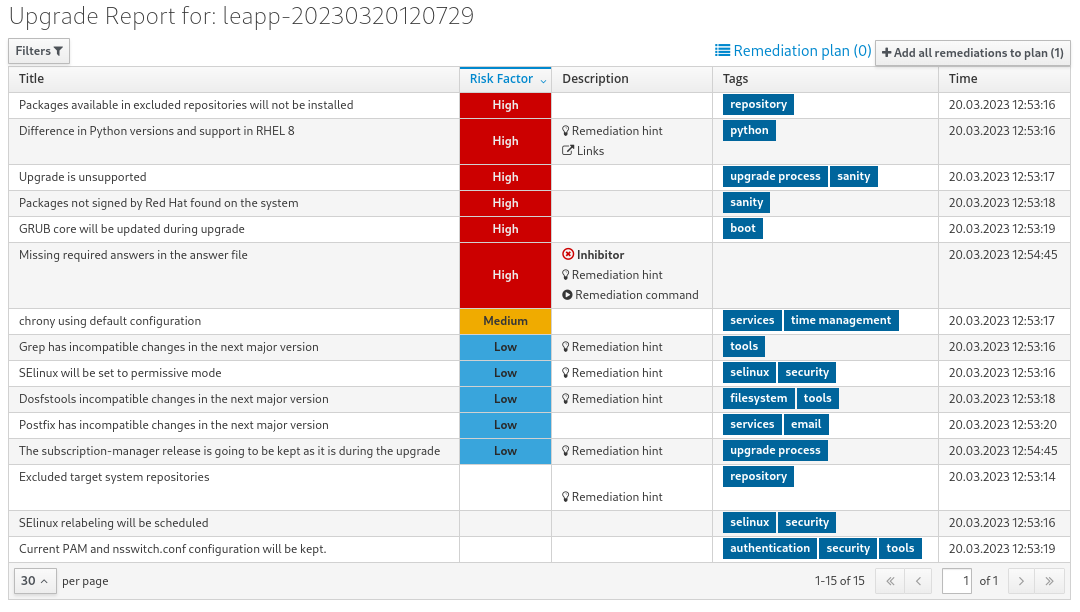

The report contains the following risk factor levels:

* High - very likely to result in a deteriorated system state.

* Medium - can impact both the system and applications.

* Low - should not impact the system but can have an impact on applications.

* Info - informational with no expected impact to the system or applications
-
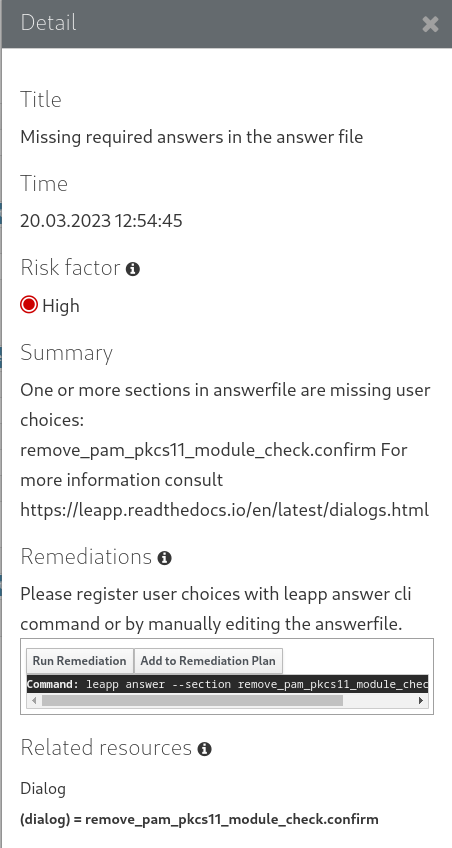
In certain configurations, the Leapp utility generates true or false questions that you must answer manually. If the Upgrade Report contains a Missing required answers in the answer file row, complete the following steps:
-
Select the Missing required answers in the answer file row to open the Detail pane. The default answer is stated at the end of the remediation command.
-
To confirm the default answer, select Add to Remediation Plan to start the remediation later or Run Remediation to start the remediation immediately.
-
To select the non-default answer instead, run the
leapp answercommand in the terminal, specifying the question you are responding to and your confirmed answer.# leapp answer --section question_section.confirm=answerNOTE: You can also manually edit the
/var/log/leapp/answerfilefile, uncomment the confirm line of the file by deleting the#symbol, and confirm your answer asTrueorFalse. For more information, see the Example 7.1, “Leapp answerfile” example in the Upgrading from RHEL 9 to RHEL 10 guide.
-
-
Some problems have remediation commands that you can run to automatically resolve the problems. You can run remediation commands individually or all together in the remediation command:
-
To run a single remediation command, open the Detail pane for the problem and click Run Remediation.
-
To add a remediation command to the remediation plan, open the Detail pane for the problem and click Add to Remediation Plan.
-

* To run the remediation plan containing all added remediation commands, click the **Remediation plan** link in the top right corner above the report. Click **Execute Remediation Plan** to run all listed commands.
- After reviewing the report and resolving all reported problems, repeat steps 3-7 to rerun the report to verify that you have resolved all critical issues.
Performing the upgrade and conversion
After you have completed the preparatory steps and reviewed and resolved the problems found in the pre-upgrade and conversion report, you can perform the in-place upgrade and conversion to RHEL on your system.
This procedure lists steps required to perform the upgrade and conversion to RHEL 10 by using the Leapp utility.
Prerequisites
-
You completed the Preparing for the upgrade and conversion procedure, including a full system backup.
-
You completed the Reviewing the pre-upgrade and conversion report procedure and all reported issues resolved.
-
You temporarily disabled antivirus software and configured health checks to prevent the upgrade and conversion from failing.
IMPORTANT: It is critical to temporarily disable configured health checks before performing the in-place upgrade and conversion to prevent the upgrade and conversion process from being interrupted during critical phases, causing system loss.
Procedure
-
On your system, start the upgrade and conversion process:
# leapp upgrade --target-os rhelIf you have defined target RHEL repositories by using a RHEL ISO image, add the
--isooption.At the beginning of the upgrade and conversion process, Leapp repeats the pre-upgrade and conversion phase described in Reviewing the pre-upgrade and conversion report:
-
If the system can be upgraded and converted, Leapp downloads necessary data and prepares an RPM transaction for the upgrade and conversion.
-
If your system does not meet the parameters for a reliable upgrade and conversion, Leapp terminates the upgrade and conversion process and provides a record describing the issue and a recommended solution in the /var/log/leapp/leapp-report.txt file. For more information, see Troubleshooting.
-
-
Manually restart the system:
# rebootThe system boots into a RHEL 10-based initial RAM disk image, initramfs. Leapp upgrades and converts all packages and automatically restarts to the RHEL 10 system.
Alternatively, you can run the leapp upgrade command with the --reboot option and skip this manual step.
If a failure occurs, investigate logs and known issues as described in Troubleshooting in the Upgrading from RHEL 9 to RHEL 10 guide.
-
Log in to the RHEL 10 system and verify its state as described in Verifying the post-upgrade state of the RHEL 10 system in the Upgrading from RHEL 9 to RHEL 10 guide.
-
Perform all post-upgrade tasks described in the upgrade and conversion report and in Performing post-upgrade tasks in the Upgrading from RHEL 9 to RHEL 10 guide.