Installation guide
Installing Red Hat OpenShift Dev Spaces 3.28
Abstract
Preface
Deploy Red Hat OpenShift Dev Spaces on an OpenShift cluster to provide your development team with consistent, ready-to-code cloud environments.
Chapter 1. OpenShift Dev Spaces installation overview
OpenShift Dev Spaces deploys on OpenShift as an Operator that manages a gateway, dashboard, server, and plug-in registry. The installation method you choose — CLI or web console — depends on your cluster environment, security requirements, and need for configuration control.
OpenShift Dev Spaces consists of an Operator, a user dashboard, a gateway, and a plug-in registry. The Operator manages the full lifecycle of all server components. You deploy OpenShift Dev Spaces by installing the Operator and creating a CheCluster custom resource.
1.1. Installation methods
OpenShift Dev Spaces supports two installation methods:
dsccommand-line tool- Install and manage OpenShift Dev Spaces from the command line. This method provides the most control over the installation process and supports advanced configuration options during deployment.
- OpenShift web console
-
Install the Red Hat OpenShift Dev Spaces Operator from OperatorHub and create a
CheClusterinstance through the web console. This method uses the standard OpenShift Operator installation workflow.
1.2. Deployment scenarios
- Standard installation
- Deploy OpenShift Dev Spaces on an OpenShift cluster with internet access. Both the CLI and web console methods are available.
- Restricted environment
- Deploy OpenShift Dev Spaces on an air-gapped or disconnected OpenShift cluster. This scenario requires mirroring container images to a private registry before installation.
- External identity provider
- Deploy OpenShift Dev Spaces with Keycloak as an external OpenID Connect (OIDC) identity provider instead of the default OpenShift OAuth. This scenario applies when you need to integrate with an existing identity management system.
Chapter 2. Requirements
Before installing OpenShift Dev Spaces, verify that your OpenShift cluster meets the platform, resource, tooling, and permission requirements.
2.1. Supported platforms
OpenShift Dev Spaces runs on a specific range of OpenShift versions and CPU architectures. Confirm that your target cluster matches a supported combination before starting the installation.
OpenShift Dev Spaces runs on OpenShift 4.16–4.22 on the following CPU architectures:
-
AMD64 and Intel 64 (
x86_64) -
IBM Z (
s390x) -
IBM Power (
ppc64le) -
ARMv8 (
arm64)
2.2. Calculate OpenShift Dev Spaces resource requirements
Calculate the CPU and memory requirements for the OpenShift Dev Spaces Operator, Dev Workspace Controller, and user workspaces. Accurate resource estimates ensure your cluster can handle the expected number of concurrent users without performance issues.
The following link to an Content from github.com is not included.example devfile is a pointer to material from the upstream community. This material represents the very latest available content and the most recent best practices. These tips have not yet been vetted by Red Hat’s QE department, and they have not yet been proven by a wide user group. Please, use this information cautiously. It is best used for educational and 'developmental' purposes rather than 'production' purposes.
Prerequisites
- You have a planned or existing OpenShift Dev Spaces deployment on OpenShift Container Platform 4.16 or later.
- You have the devfiles that define the development environments for your users.
- You have an estimate of the number of concurrent workspaces that your users will run.
Procedure
Identify the workspace resource requirements from the devfile
componentssection. The following example uses the Content from github.com is not included.Quarkus API example devfile.The
toolscomponent of the devfile defines the following requests and limits:memoryLimit: 6G memoryRequest: 512M cpuRequest: 1000m cpuLimit: 4000mDuring workspace startup, an internal
che-gatewaycontainer is implicitly provisioned with the following requests and limits:memoryLimit: 256M memoryRequest: 64M cpuRequest: 50m cpuLimit: 500mAdditional memory and CPU are added implicitly for the Visual Studio Code - Open Source ("Code - OSS") editor:
memoryLimit: 1024M memoryRequest: 256M cpuRequest: 30m cpuLimit: 500mAdditional memory and CPU are added implicitly for a JetBrains IDE, for example IntelliJ IDEA Ultimate:
    memoryLimit: 6144M
    memoryRequest: 2048M
    cpuRequest: 1500m
    cpuLimit: 2000m
Calculate the sums of the resources required for each workspace. If you intend to use multiple devfiles, repeat this calculation for every expected devfile.
Table 2.1. Workspace requirements for the Content from github.com is not included.example devfile in the previous step
Purpose Pod Container name Memory limit Memory request CPU limit CPU request Developer tools
workspacetools6 GiB
512 MiB
4000 m
1000 m
OpenShift Dev Spaces gateway
workspaceche-gateway256 MiB
64 MiB
500 m
50 m
Visual Studio Code
workspacetools1024 MiB
256 MiB
500 m
30 m
Total
7.3 GiB
832 MiB
5000 m
1080 m
- Multiply the resources calculated per workspace by the number of workspaces that you expect all of your users to run simultaneously.
Calculate the sums of the requirements for the OpenShift Dev Spaces Operator, Operands, and Dev Workspace Controller.
Table 2.2. Default requirements for the OpenShift Dev Spaces Operator, Operands, and Dev Workspace Controller
Purpose Pod name Container names Memory limit Memory request CPU limit CPU request OpenShift Dev Spaces operator
devspaces-operatordevspaces-operator256 MiB
64 MiB
500 m
100 m
OpenShift Dev Spaces Server
devspacesdevspaces-server1 GiB
512 MiB
1000 m
100 m
OpenShift Dev Spaces Dashboard
devspaces-dashboarddevspaces-dashboard256 MiB
32 MiB
500 m
100 m
OpenShift Dev Spaces Gateway
devspaces-gatewaytraefik4 GiB
128 MiB
1000 m
100 m
OpenShift Dev Spaces Gateway
devspaces-gatewayconfigbump256 MiB
64 MiB
500 m
50 m
OpenShift Dev Spaces Gateway
devspaces-gatewayoauth-proxy512 MiB
64 MiB
500 m
100 m
OpenShift Dev Spaces Gateway
devspaces-gatewaykube-rbac-proxy512 MiB
64 MiB
500 m
100 m
Plugin registry
plugin-registryplugin-registry256 MiB
32 MiB
500 m
100 m
Dev Workspace Controller Manager
devworkspace-controller-managerdevworkspace-controller5 GiB
100 MiB
3000 m
250 m
Dev Workspace Controller Manager
devworkspace-controller-managerkube-rbac-proxyN/A
N/A
N/A
N/A
Dev Workspace Operator Catalog
devworkspace-operator-catalogregistry-serverN/A
50 MiB
N/A
10 m
Dev Workspace Webhook Server
devworkspace-webhook-serverwebhook-server300 MiB
20 MiB
200 m
100 m
Dev Workspace Webhook Server
devworkspace-webhook-serverkube-rbac-proxyN/A
N/A
N/A
N/A
Total
12.3 GiB
1.1 GiB
8.2
1.1
- Add the workspace resources from step 3 and the operator resources from step 4 to determine total cluster resource requirements.
Verification
- Verify that the total resource requirements account for all OpenShift Dev Spaces Operator components, Dev Workspace Controller components, and the expected number of concurrent workspaces.
2.3. OpenShift Dev Spaces scalability
Scaling cloud development environments (CDEs) to thousands of concurrent workspaces imposes high infrastructure demands on etcd storage, Operator memory, and worker node capacity. This topic covers the bottlenecks, tested maximums, and architectural patterns — including multi-cluster deployments — that address these challenges.
Such a scale imposes high infrastructure demands and introduces potential bottlenecks that can impact performance and stability. Addressing these challenges requires meticulous planning, strategic architectural choices, monitoring, and continuous optimization.
CDE workloads are particularly complex to scale. The underlying IDE solutions, such as Visual Studio Code - Open Source ("Code - OSS") or JetBrains Gateway, are designed as single-user applications, not as multitenant services.
2.3.1. Resource quantity and object maximums
While there is no strict limit on the number of resources in a Kubernetes cluster, there are certain considerations for large clusters to remember.
OpenShift Container Platform, a certified distribution of Kubernetes, provides a set of tested maximums for various resources. These maximums can serve as an initial guideline for planning your environment:
Table 2.3. OpenShift Container Platform tested cluster maximums
| Resource type | Tested maximum |
|---|---|
| Number of nodes | 2000 |
| Number of pods | 150000 |
| Number of pods per node | 2500 |
| Number of namespace | 10000 |
| Number of services | 10000 |
| Number of secrets | 80000 |
| Number of config maps | 90000 |
For more details on OpenShift Container Platform tested object maximums, see the OpenShift Container Platform scalability and performance documentation.
For example, it is generally not recommended to have more than 10,000 namespaces due to potential performance and management overhead. In Red Hat OpenShift Dev Spaces, each user is allocated a namespace. If you expect the user base to be large, consider spreading workloads across multiple "fit-for-purpose" clusters and potentially using solutions for multi-cluster orchestration.
2.3.2. Resource requirements
When deploying Red Hat OpenShift Dev Spaces on Kubernetes, accurately calculate the resource requirements for each CDE, including memory and CPU or GPU needs. This determines the right sizing of the cluster. In general, the CDE size is limited by and cannot be bigger than the worker node size.
The resource requirements for CDEs can vary significantly based on the specific workloads and configurations. A simple CDE might require only a few hundred megabytes of memory. A more complex one might need several gigabytes of memory and multiple CPU cores.
For details about calculating resource requirements, see the procedure for calculating OpenShift Dev Spaces resource requirements.
2.3.3. Using etcd
The primary datastore of Kubernetes cluster configuration and state is etcd. It holds information about nodes, pods, services, and custom resources.
As a distributed key-value store, etcd does not scale well past a certain threshold. As the size of etcd grows, so does the load on the cluster, risking its stability.
The default etcd size is 2 GB, and the recommended maximum is 8 GB. Exceeding the maximum limit can make the Kubernetes cluster unstable and unresponsive. Even though the data stored in a ConfigMap cannot exceed 1 MiB by design, a few thousand relatively large ConfigMap objects can overload etcd storage.
2.3.4. Object size as a factor
The size of the objects stored in etcd is also a critical factor. Each object consumes space, and as the number of objects increases, the overall size of etcd grows. The larger the object, the more space it takes. For example, etcd can be overloaded with only a few thousand large Kubernetes objects.
In the context of Red Hat OpenShift Dev Spaces, by default the Operator creates and manages the 'ca-certs-merged' ConfigMap, which contains the Certificate Authorities (CAs) bundle, in every user namespace. With a large number of Transport Layer Security (TLS) certificates in the cluster, this results in additional etcd usage.
To disable mounting the CA bundle by using the ConfigMap under the /etc/pki/ca-trust/extracted/pem path, configure the CheCluster Custom Resource by setting the disableWorkspaceCaBundleMount property to true. With this configuration, only custom certificates are mounted under the path /public-certs:
spec:
  devEnvironments:
    trustedCerts:
disableWorkspaceCaBundleMount: true2.3.5. Dev Workspace objects
For large Kubernetes deployments, particularly those involving a high number of custom resources such as DevWorkspace objects, which represent CDEs, etcd can become a significant performance bottleneck.
Based on the load testing for 6,000 DevWorkspace objects, storage consumption for etcd was approximately 2.5GB.
Starting from Dev Workspace Operator version 0.34.0, you can configure a pruner that automatically cleans up DevWorkspace objects that were not in use for a certain period of time. To set the pruner up, configure the DevWorkspaceOperatorConfig object as follows:
apiVersion: controller.devfile.io/v1alpha1
kind: DevWorkspaceOperatorConfig
metadata:
  name: devworkspace-operator-config
  namespace: crw
config:
  workspace:
    cleanupCronJob:
      enabled: true
      dryRun: false
      retainTime: 2592000
schedule: "0 0 1 * *"- retainTime
- By default, if a workspace was not started for more than 30 days, it is marked for deletion.
- schedule
- By default, the pruner runs once per month.
2.3.6. OLMConfig
When an Operator is installed by the Operator Lifecycle Manager (OLM), a stripped-down copy of its CSV is created in every namespace the Operator watches. These "Copied CSVs" communicate which controllers are reconciling resource events in a given namespace.
On large clusters with hundreds or thousands of namespaces, Copied CSVs consume an unsustainable amount of resources, including OLM memory, etcd storage, and network bandwidth. To eliminate the CSVs copied to every namespace, configure the OLMConfig object:
apiVersion: operators.coreos.com/v1
kind: OLMConfig
metadata:
  name: cluster
spec:
  features:
    disableCopiedCSVs: true
Additional information about the disableCopiedCSVs feature is available in its original enhancement proposal.
In clusters with many namespaces and cluster-wide Operators, Copied CSVs increase etcd storage usage and memory consumption. Disabling Copied CSVs significantly reduces the data stored in etcd and improves cluster performance and stability.
Disabling Copied CSVs also reduces the memory footprint of OLM, as it no longer maintains these additional resources.
For more details about disabling Copied CSVs, see the OLM documentation.
2.3.7. Cluster Autoscaling
Although cluster autoscaling is a powerful Kubernetes feature, you cannot always rely on it. Consider predictive scaling by analyzing load data to detect daily or weekly usage patterns.
If your workloads follow a pattern with dramatic peaks throughout the day, provision worker nodes accordingly. For example, if workspaces increase during business hours and decrease during off-hours, predictive scaling adjusts the number of worker nodes. This ensures enough resources are available during peak load while minimizing costs during off-peak hours.
You can also use open-source solutions such as Karpenter for configuration and lifecycle management of the worker nodes. Karpenter can dynamically provision and optimize worker nodes based on the specific requirements of the workloads. This helps improve resource utilization and reduce costs.
2.3.8. Multi-cluster
By design, Red Hat OpenShift Dev Spaces is not multi-cluster aware. You can only have one instance per cluster.
However, you can run Red Hat OpenShift Dev Spaces in a multi-cluster environment by deploying Red Hat OpenShift Dev Spaces in each cluster. Use a load balancer or Domain Name System (DNS)-based routing to direct traffic to the appropriate instance. This approach distributes the workload across clusters and provides redundancy in case of cluster failures.
2.3.9. Developer Sandbox example
You can test running OpenShift Dev Spaces in a multi-cluster environment by using the Developer Sandbox, a free trial environment by Red Hat.
From an infrastructure perspective, the Developer Sandbox consists of multiple Red Hat OpenShift Service on AWS (ROSA) clusters. On each cluster, the productized version of Red Hat OpenShift Dev Spaces is installed and configured using Argo CD. The workspaces.openshift.com URL is used as a single entry point to the Red Hat OpenShift Dev Spaces instances across clusters.
Figure 2.1. Developer Sandbox multi-cluster architecture
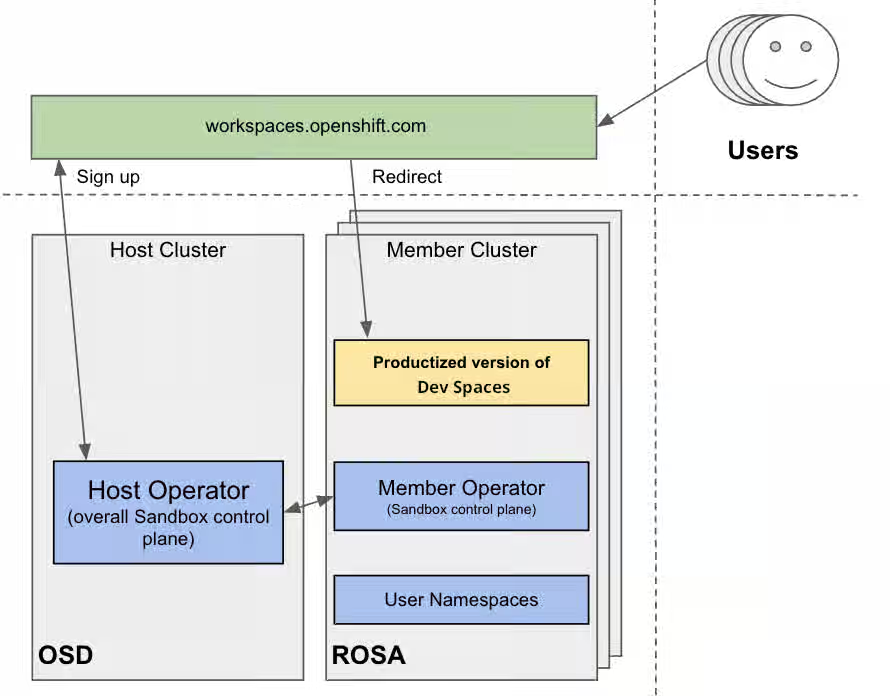
You can find implementation details about the multicluster redirector in the crw-multicluster-redirector GitHub repository.
The multi-cluster architecture of workspaces.openshift.com is part of the Developer Sandbox. It is a Developer Sandbox-specific solution that cannot be reused as-is in other environments. However, you can use it as a reference for implementing a similar solution well-tailored to your specific multicluster needs.
2.3.10. The multicluster redirector solution for OpenShift Container Platform
Red Hat offers an open-source, Quarkus-based service that acts as a single gateway for developers. This service automatically redirects users to the correct Red Hat OpenShift Dev Spaces instance on the appropriate cluster based on their OpenShift Container Platform group membership. The community-supported version is available in the devspaces-multicluster-redirector GitHub repository.
2.3.11. Architecture and requirements
A critical requirement for the multicluster redirector is that all users are provisioned to the host cluster where the redirector is deployed. Users authenticate through the OAuth flow of this cluster, even if they never run workloads there. The host cluster’s OpenShift Container Platform groups determine the routing logic. See the devspaces-multicluster-redirector documentation for deployment instructions.
2.3.12. Configuration
The routing configuration uses a ConfigMap that contains JSON to map OpenShift Container Platform groups to Red Hat OpenShift Dev Spaces URLs. The redirector uses this file to update routing tables in real-time without requiring restarts.
2.3.13. Operational flow
The routing process follows these steps:
- Authenticate by using OAuth through a proxy sidecar.
- Pass identity and group information through HTTP headers.
- Verify group memberships by using OpenShift Container Platform API queries.
- Determine the appropriate Red Hat OpenShift Dev Spaces URL by using a mapping lookup.
- Redirect the user to the designated cluster instance.
If users belong to multiple OpenShift Container Platform groups, they can choose their desired Red Hat OpenShift Dev Spaces instance from a selection dashboard.
Additional resources
- Content from che.eclipseprojects.io is not included.Running at scale
- This content is not included.Enterprise multi-cluster scalability
- Content from kubernetes.io is not included.Kubernetes
- Content from github.com is not included.Visual Studio Code - Open Source ("Code - OSS")
- Content from www.jetbrains.com is not included.JetBrains Gateway
- Content from kubernetes.io is not included.Considerations for large clusters
- Content from kubernetespodcast.com is not included."Scalability, with Wojciech Tyczynski" episode of Kubernetes Podcast
- This content is not included.OpenShift Container Platform
- OpenShift Container Platform tested object maximums
- Calculate OpenShift Dev Spaces resource requirements
- Content from etcd.io is not included.etcd
- Content from olm.operatorframework.io is not included.Operator Lifecycle Manager (OLM)
- Content from github.com is not included.OLM toggle Copied CSVs enhancement proposal
- Content from olm.operatorframework.io is not included.Disabling Copied CSVs in OLM
- Content from karpenter.sh is not included.Karpenter
- This content is not included.Developer Sandbox
- This content is not included.Red Hat OpenShift Service on AWS (ROSA)
- Content from argo-cd.readthedocs.io is not included.Argo CD
- Content from workspaces.openshift.com is not included.workspaces.openshift.com
- Content from github.com is not included.crw-multicluster-redirector GitHub repository
- Content from github.com is not included.devspaces-multicluster-redirector GitHub repository
2.4. Install the dsc management tool
Install dsc, the Red Hat OpenShift Dev Spaces CLI management tool, on Linux, macOS, or Windows. The dsc tool lets you deploy, update, and manage OpenShift Dev Spaces from the command line.
Prerequisites
You have a Linux or macOS workstation.
NoteFor installing
dscon Windows, see the following pages:
Procedure
-
Download the archive from This content is not included.https://developers.redhat.com/products/openshift-dev-spaces/download to a directory such as
$HOME. -
Run
tar xvzfon the archive to extract the/dscdirectory. -
Add the extracted
/dsc/binsubdirectory to$PATH.
Verification
Run
dscto view information about it.$ dsc
Additional resources
2.5. Permissions to install OpenShift Dev Spaces on OpenShift using CLI
The following ClusterRole defines the minimum permissions required for a dsc-based installation of OpenShift Dev Spaces. Apply this role to the installer’s service account or user before running dsc server:deploy.
The following YAML defines the minimal set of permissions for installing OpenShift Dev Spaces on an OpenShift cluster using dsc:
apiVersion: rbac.authorization.k8s.io/v1
kind: ClusterRole
metadata:
  name: devspaces-install-dsc
rules:
- apiGroups: ["org.eclipse.che"]
  resources: ["checlusters"]
  verbs: ["*"]
- apiGroups: ["project.openshift.io"]
  resources: ["projects"]
  verbs: ["get", "list"]
- apiGroups: [""]
  resources: ["namespaces"]
  verbs: ["get", "list", "create"]
- apiGroups: [""]
  resources: ["pods", "configmaps"]
  verbs: ["get", "list"]
- apiGroups: ["route.openshift.io"]
  resources: ["routes"]
  verbs: ["get", "list"]
  # OLM resources permissions
- apiGroups: ["operators.coreos.com"]
  resources: ["catalogsources", "subscriptions"]
  verbs: ["create", "get", "list", "watch"]
- apiGroups: ["operators.coreos.com"]
  resources: ["operatorgroups", "clusterserviceversions"]
  verbs: ["get", "list", "watch"]
- apiGroups: ["operators.coreos.com"]
  resources: ["installplans"]
  verbs: ["patch", "get", "list", "watch"]
- apiGroups: ["packages.operators.coreos.com"]
  resources: ["packagemanifests"]
  verbs: ["get", "list"]
Additional resources
2.6. Permissions to install OpenShift Dev Spaces on OpenShift using web console
Install OpenShift Dev Spaces through the OpenShift web console with a specific set of cluster permissions. Apply this ClusterRole to the installer’s service account or user to grant the minimum required permissions for web console installation.
The following YAML defines the minimal set of permissions for installing OpenShift Dev Spaces on an OpenShift cluster using the web console:
apiVersion: rbac.authorization.k8s.io/v1
kind: ClusterRole
metadata:
  name: devspaces-install-web-console
rules:
- apiGroups: ["org.eclipse.che"]
  resources: ["checlusters"]
  verbs: ["*"]
- apiGroups: [""]
  resources: ["namespaces"]
  verbs: ["get", "list", "create"]
- apiGroups: ["project.openshift.io"]
  resources: ["projects"]
  verbs: ["get", "list", "create"]
  # OLM resources permissions
- apiGroups: ["operators.coreos.com"]
  resources: ["subscriptions"]
  verbs: ["get", "list", "watch", "create", "update", "patch", "delete"]
- apiGroups: ["operators.coreos.com"]
  resources: ["operatorgroups"]
  verbs: ["get", "list", "watch"]
- apiGroups: ["operators.coreos.com"]
  resources: ["clusterserviceversions", "catalogsources", "installplans"]
  verbs: ["get", "list", "watch", "delete"]
- apiGroups: ["packages.operators.coreos.com"]
  resources: ["packagemanifests", "packagemanifests/icon"]
  verbs: ["get", "list", "watch"]
  # Workaround related to viewing operators in OperatorHub
- apiGroups: ["operator.openshift.io"]
  resources: ["cloudcredentials"]
  verbs: ["get", "list", "watch"]
- apiGroups: ["config.openshift.io"]
  resources: ["infrastructures", "authentications"]
  verbs: ["get", "list", "watch"]
Additional resources
Chapter 3. Install Red Hat OpenShift Dev Spaces
Install Red Hat OpenShift Dev Spaces on an OpenShift cluster by using the command-line interface (CLI) or the web console. Choose the method that matches your cluster environment and configuration needs.
You can deploy only one instance of OpenShift Dev Spaces per cluster.
3.1. Install Dev Spaces on OpenShift using CLI
Install the OpenShift Dev Spaces Operator and create a CheCluster instance from the command line by using the dsc management tool. The CLI method provides full control over configuration options during deployment.
Prerequisites
- You have an OpenShift Container Platform 4.22 or later cluster.
-
You have an active
ocsession with administrative permissions to the OpenShift cluster. See This page is not included, but the link has been rewritten to point to the nearest parent document.Getting started with the OpenShift CLI. -
You have the
dscmanagement tool installed. See Section 2.4, “Install the dsc management tool”.
Procedure
Optional: If you previously deployed OpenShift Dev Spaces on this OpenShift cluster, remove the previous OpenShift Dev Spaces instance:
$ dsc server:delete
Create the OpenShift Dev Spaces instance:
$ dsc server:deploy --platform openshift
Verification
Verify the OpenShift Dev Spaces instance status:
$ dsc server:status
Navigate to the OpenShift Dev Spaces cluster instance:
$ dsc dashboard:open
On ARM64 (AArch64) OpenShift clusters, you must override the gateway sidecar images after installing the Red Hat OpenShift Dev Spaces Operator, because the default images are not available for ARM64.
To patch the Red Hat OpenShift Dev Spaces Operator subscription, run the following commands:
SUBSCRIPTION=$(oc get subscription -A \
  -o jsonpath='{.items[?(@.spec.name=="devspaces")]}')

SUBSCRIPTION_NAME=$(echo "$SUBSCRIPTION" | jq -r '.metadata.name')

SUBSCRIPTION_NAMESPACE=$(echo "$SUBSCRIPTION" | jq -r '.metadata.namespace')

oc patch subscription "$SUBSCRIPTION_NAME" \
  -n "$SUBSCRIPTION_NAMESPACE" \
  --type=merge \
  -p '{
    "spec": {
      "config": {
        "env": [
          {
            "name": "RELATED_IMAGE_gateway_authentication_sidecar",
            "value": "quay.io/openshift/origin-oauth-proxy:4.9"
          },
          {
            "name": "RELATED_IMAGE_gateway_authorization_sidecar",
            "value": "quay.io/openshift/origin-kube-rbac-proxy:4.9"
          }
        ]
      }
    }
}'Troubleshooting
-
If
dsc server:deployfails with a permission error, verify that yourocsession has the required cluster permissions. See Section 2.5, “Permissions to install OpenShift Dev Spaces on OpenShift using CLI”. -
If
dsc server:deployreports that the namespace already exists, remove the previous OpenShift Dev Spaces instance first. See Chapter 6, Uninstall OpenShift Dev Spaces.
Additional resources
3.2. Install Dev Spaces on OpenShift using the web console
Deploy the Red Hat OpenShift Dev Spaces Operator from OperatorHub and create a CheCluster instance through the OpenShift web console. This method uses the standard Operator workflow and is suitable when you do not need advanced CLI configuration options.
Prerequisites
- You have an OpenShift web console session as a cluster administrator. See Accessing the web console.
-
You have an active
ocsession with administrative permissions to the OpenShift cluster. See This page is not included, but the link has been rewritten to point to the nearest parent document.Getting started with the OpenShift CLI. - For a repeat installation: you have uninstalled the previous OpenShift Dev Spaces instance according to Chapter 6, Uninstall OpenShift Dev Spaces.
Procedure
-
In the Administrator view of the OpenShift web console, go to Operators → OperatorHub and search for
Red Hat OpenShift Dev Spaces. Install the Red Hat OpenShift Dev Spaces Operator.
ImportantThe Red Hat OpenShift Dev Spaces Operator depends on the Dev Workspace Operator. If you install the Red Hat OpenShift Dev Spaces Operator manually to a non-default namespace, ensure that the Dev Workspace Operator is also installed in the same namespace. The Operator Lifecycle Manager installs the Dev Workspace Operator as a dependency within the Red Hat OpenShift Dev Spaces Operator namespace. If the Dev Workspace Operator is already installed in a different namespace, two conflicting installations can result.
ImportantIf you want to onboard Web Terminal Operator on the cluster, use the same installation namespace as the Red Hat OpenShift Dev Spaces Operator. Both operators depend on the Dev Workspace Operator, so all three must be installed in the same namespace.
Create the
openshift-devspacesnamespace:oc create namespace openshift-devspaces
- Go to Operators → Installed Operators → Red Hat OpenShift Dev Spaces instance Specification → Create CheCluster → YAML view.
-
In the YAML view, replace
namespace: openshift-operatorswithnamespace: openshift-devspaces. Select Create.
Verification
- In Red Hat OpenShift Dev Spaces instance Specification, go to devspaces, landing on the Details tab.
- Under Message, check that there is None, which means no errors.
- Under Red Hat OpenShift Dev Spaces URL, wait until the URL of the OpenShift Dev Spaces instance appears, and then open the URL to check the OpenShift Dev Spaces dashboard.
- In the Resources tab, view the resources for the OpenShift Dev Spaces deployment and their status.
On ARM64 (AArch64) OpenShift clusters, you must override the gateway sidecar images after installing the Red Hat OpenShift Dev Spaces Operator, because the default images are not available for ARM64.
To patch the Red Hat OpenShift Dev Spaces Operator subscription, run the following commands:
SUBSCRIPTION=$(oc get subscription -A \
  -o jsonpath='{.items[?(@.spec.name=="devspaces")]}')

SUBSCRIPTION_NAME=$(echo "$SUBSCRIPTION" | jq -r '.metadata.name')

SUBSCRIPTION_NAMESPACE=$(echo "$SUBSCRIPTION" | jq -r '.metadata.namespace')

oc patch subscription "$SUBSCRIPTION_NAME" \
  -n "$SUBSCRIPTION_NAMESPACE" \
  --type=merge \
  -p '{
    "spec": {
      "config": {
        "env": [
          {
            "name": "RELATED_IMAGE_gateway_authentication_sidecar",
            "value": "quay.io/openshift/origin-oauth-proxy:4.9"
          },
          {
            "name": "RELATED_IMAGE_gateway_authorization_sidecar",
            "value": "quay.io/openshift/origin-kube-rbac-proxy:4.9"
          }
        ]
      }
    }
}'Troubleshooting
- If the Operator installation fails, verify that your account has the required cluster permissions. See Section 2.6, “Permissions to install OpenShift Dev Spaces on OpenShift using web console”.
-
If the
CheClusterresource reports errors, verify that the Dev Workspace Operator is installed in the same namespace as the Red Hat OpenShift Dev Spaces Operator.
3.3. Install OpenShift Dev Spaces in a restricted environment on OpenShift
Deploy OpenShift Dev Spaces on an air-gapped OpenShift cluster by mirroring the required container images and Operator catalogs to a private registry. This procedure covers the additional steps needed when the cluster has no direct internet access.
On a restricted network, deploying OpenShift Dev Spaces and running workspaces requires the following public resources:
- Operator catalog
- Container images
- Sample projects
To make these resources available, you can replace them with their copy in a registry accessible by the OpenShift cluster.
Prerequisites
- You have an OpenShift cluster with at least 64 GB of disk space.
- You have an OpenShift cluster ready to operate on a restricted network. See About disconnected installation mirroring and This page is not included, but the link has been rewritten to point to the nearest parent document.Using Operator Lifecycle Manager on restricted networks.
-
You have an active
ocsession with administrative permissions to the OpenShift cluster. See This page is not included, but the link has been rewritten to point to the nearest parent document.Getting started with the OpenShift CLI. -
You have an active
oc registrysession to theregistry.redhat.ioRed Hat Ecosystem Catalog. See Red Hat Container Registry authentication. -
You have
opminstalled. See Installing theopmCLI. -
You have
jqinstalled. See Content from stedolan.github.io is not included.Downloadingjq. -
You have
podmaninstalled. See Content from podman.io is not included.Podman Installation Instructions. -
You have
skopeoversion 1.6 or higher installed. See Content from github.com is not included.Installing Skopeo. -
You have an active
skopeosession with administrative access to the private Docker registry. See Content from github.com is not included.Authenticating to a registry and Mirroring images for a disconnected installation. -
You have
dscfor OpenShift Dev Spaces version 3.28 installed. See Installing the dsc management tool.
Procedure
Download and execute the mirroring script to install a custom Operator catalog and mirror the related images.
$ bash prepare-restricted-environment.sh \ --devworkspace_operator_index registry.redhat.io/redhat/redhat-operator-index:v4.22\ --devworkspace_operator_version "v0.41.0" \ --prod_operator_index "registry.redhat.io/redhat/redhat-operator-index:v4.22" \ --prod_operator_package_name "devspaces" \ --prod_operator_bundle_name "devspacesoperator" \ --prod_operator_version "v3.28.0" \ --my_registry "<my_registry>"--my_registry- The private Docker registry where the images will be mirrored
Procedure
Install OpenShift Dev Spaces with the configuration set in the
che-operator-cr-patch.yamlduring the previous step:$ dsc server:deploy \ --platform=openshift \ --olm-channel stable \ --catalog-source-name=devspaces-disconnected-install \ --catalog-source-namespace=openshift-marketplace \ --skip-devworkspace-operator \ --che-operator-cr-patch-yaml=che-operator-cr-patch.yaml
- Allow incoming traffic from the OpenShift Dev Spaces namespace to all Pods in the user projects. See Configuring network policies.
Verification
Verify that the OpenShift Dev Spaces instance is running:
$ dsc server:status
Troubleshooting
-
If
dsc server:deployfails with image pull errors, verify that all required images are mirrored to your private registry and that theImageContentSourcePolicyorImageDigestMirrorSetis configured correctly. -
If workspaces fail to start, verify that the network policies allow traffic from the
openshift-devspacesnamespace to user projects. See Configuring network policies.
Additional resources
3.4. Set up an Ansible sample
Enable the Ansible sample in a restricted OpenShift Dev Spaces environment by mirroring the required container images and allowing access to the Ansible Galaxy domains.
Prerequisites
- You have Microsoft Visual Studio Code - Open Source IDE as the configured editor.
- You have a 64-bit x86 system.
Procedure
Mirror the following images:
ghcr.io/ansible/ansible-devspaces@sha256:d7711d5205a89c0c2b71d0937d70916feabcda343b7522da6413aa762b506c65
registry.access.redhat.com/ubi8/python-39@sha256:301fec66443f80c3cc507ccaf72319052db5a1dc56deb55c8f169011d4bbaacb
Configure the cluster proxy to allow access to the following domains:
.ansible.com
.ansible-galaxy-ng.s3.dualstack.us-east-1.amazonaws.com
NoteSupport for the following IDE and CPU architectures is planned for a future release:
CPU architectures
- IBM Power (ppc64le)
- IBM Z (s390x)
Verification
- Verify that the mirrored images are accessible from the OpenShift cluster.
3.5. Install OpenShift Dev Spaces on OpenShift with Keycloak as external identity provider
Install OpenShift Dev Spaces with Keycloak as an external OpenID Connect (OIDC) identity provider instead of the default OpenShift OAuth. Use this approach when you need to integrate OpenShift Dev Spaces with an existing identity management system.
Prerequisites
-
You have an active
ocsession with administrative permissions to the OpenShift cluster. See This page is not included, but the link has been rewritten to point to the nearest parent document.Getting started with the CLI. - You have Keycloak configured as an external identity provider for OpenShift. See Enabling direct authentication with an external OIDC identity provider.
Procedure
Define the environment variables:
# The Keycloak realm used for OpenShift authentication:
OPENSHIFT_REALM=<realm>

# The Keycloak URL:
KEYCLOAK_URL=<keycloak_url>
Create a
devspacesclient in the Keycloak Admin Console:- Within the realm used for OpenShift authentication, select Clients on the left side of the navigation bar.
- Select the Create client button.
On the General Settings page:
-
Enter
devspacesin the Client ID field. - Optional: Enter a Name and Description for the OAuth client.
- Click Next.
-
Enter
On the Capability config page:
- Toggle Client authentication to On.
- Click Next.
- Click Save.
- Navigate to the Credentials tab of the newly created client and copy the Client secret value for use when applying the OAuth client secret.
Add the
devspacesclient to the audiences list in the OpenShift authentication configuration:oc patch authentication.config/cluster \ --type='json' \ -p='[ { "op": "add", "path": "/spec/oidcProviders/0/issuer/audiences/-", "value": "devspaces" } ]'NoteIf you have multiple OIDC providers configured, adjust the array index in the path (currently 0) to match your Keycloak provider’s position in the configuration.
Wait for the
kube-apiservercluster Operator to roll out the configuration changes:watch oc get co kube-apiserver
Create a project for OpenShift Dev Spaces:
oc create project openshift-devspaces
Create a secret for the OAuth client in the OpenShift Dev Spaces namespace:
oc apply -f - <<EOF apiVersion: v1 kind: Secret metadata: name: oauth-secret namespace: openshift-devspaces labels: app.kubernetes.io/part-of: che.eclipse.org stringData: oAuthSecret: <client_secret> EOFwhere:
<client_secret>-
The client secret value from the
devspacesclient in Keycloak.
Optional: Create the
ConfigMapwith a Keycloak certificate in theopenshift-devspacesnamespace. If Keycloak uses a certificate that is already trusted by OpenShift, skip this step.openssl s_client \ -connect "$(echo "$KEYCLOAK_URL" | sed 's|https://||'):443" \ -showcerts < /dev/null \ | sed -n '/-----BEGIN CERTIFICATE-----/,/-----END CERTIFICATE-----/p' \ > keycloak-ca.crt oc create configmap keycloak-certs \ --from-file=keycloak-ca.crt=keycloak-ca.crt \ -n openshift-devspaces && \ oc label configmap keycloak-certs \ app.kubernetes.io/part-of=che.eclipse.org \ app.kubernetes.io/component=ca-bundle \ -n openshift-devspacesPrepare the
CheClusterpatch:cat > che-patch.yaml << EOF kind: CheCluster apiVersion: org.eclipse.che/v2 spec: networking: auth: oAuthClientName: devspaces oAuthSecret: oauth-secret identityProviderURL: "$KEYCLOAK_URL/realms/$OPENSHIFT_REALM" gateway: oAuthProxy: cookieExpireSeconds: 300 deployment: containers: - name: oauth-proxy env: - name: OAUTH2_PROXY_CODE_CHALLENGE_METHOD value: S256 - name: OAUTH2_PROXY_BACKEND_LOGOUT_URL value: "$KEYCLOAK_URL/realms/$OPENSHIFT_REALM/protocol/openid-connect/logout?id_token_hint={id_token}" components: cheServer: extraProperties: CHE_OIDC_GROUPS__CLAIM: '<GROUPS_CLAIM>' CHE_OIDC_GROUPS__PREFIX: '<GROUPS_PREFIX>' CHE_OIDC_USERNAME__CLAIM: '<USERNAME_CLAIM>' CHE_OIDC_USERNAME__PREFIX: '<USERNAME_PREFIX>' EOFwhere:
CHE_OIDC_GROUPS__CLAIM- The claim to use for extracting user groups.
CHE_OIDC_GROUPS__PREFIX- The prefix to add to group names. Empty string means no prefix.
CHE_OIDC_USERNAME__CLAIM- The claim to use for extracting the username.
CHE_OIDC_USERNAME__PREFIXThe prefix to add to usernames. Empty string means no prefix.
NoteThese values must match the corresponding claim and prefix settings configured in the
authentication.config/clusterresource. To view the current cluster configuration, run:oc get authentication.config/cluster -o yaml
Create the OpenShift Dev Spaces instance with
dsc:dsc server:deploy \ --platform openshift \ --che-operator-cr-patch-yaml che-patch.yaml
Update the
devspacesclient to set the OpenShift Dev Spaces redirect URI and web origin.Obtain the Red Hat OpenShift Dev Spaces URL:
echo "$(oc get checluster devspaces -n openshift-devspaces -o jsonpath='{.status.cheURL}')"-
In the Valid redirect URIs field, enter the URL above with
/oauth/callbackappended. - In the Web origins field, enter the URL above.
- Click Save.
-
In the Valid redirect URIs field, enter the URL above with
Verification
Verify the OpenShift Dev Spaces instance status:
dsc server:status
Navigate to the OpenShift Dev Spaces cluster instance:
dsc dashboard:open
- Log in to the OpenShift Dev Spaces instance.
Troubleshooting
-
If the login redirects to an error page, verify that the Valid redirect URIs and Web origins fields are set correctly in the
devspacesKeycloak client. -
If the
kube-apiserverOperator does not stabilize after patching the authentication configuration, verify that theaudiencesarray contains thedevspacesentry and that the OIDC provider index is correct. -
If Keycloak uses a self-signed certificate and the login fails with a TLS error, verify that the
keycloak-certsConfigMapexists in theopenshift-devspacesnamespace with the correct certificate chain.
3.6. Use dsc to configure the CheCluster Custom Resource during installation
To deploy OpenShift Dev Spaces with a suitable configuration, edit the CheCluster Custom Resource YAML file during the installation of OpenShift Dev Spaces. Otherwise, the OpenShift Dev Spaces deployment uses the default configuration parameterized by the Operator.
Prerequisites
-
You have an active
ocsession with administrative permissions to the OpenShift cluster. See This page is not included, but the link has been rewritten to point to the nearest parent document.Getting started with the CLI. -
You have the
dscmanagement tool installed. See Section 2.4, “Install the dsc management tool”.
Procedure
Create a
che-operator-cr-patch.yamlYAML file that contains the subset of theCheClusterCustom Resource to configure:spec: <component>: <property_to_configure>: <value>
Deploy OpenShift Dev Spaces and apply the changes described in
che-operator-cr-patch.yamlfile:$ dsc server:deploy \ --che-operator-cr-patch-yaml=che-operator-cr-patch.yaml \ --platform <chosen_platform>
Verification
Verify the value of the configured property:
$ oc get configmap che -o jsonpath='{.data.<configured_property>}' \
-n openshift-devspaces
3.7. Find the fully qualified domain name (FQDN)
Retrieve the OpenShift Dev Spaces dashboard URL from the CheCluster custom resource. You need this URL to open the dashboard in a browser or share the endpoint with your development team.
You can find the FQDN for your organization’s OpenShift Dev Spaces instance in the Administrator view of the OpenShift web console as follows. Go to Operators → Installed Operators → Red Hat OpenShift Dev Spaces instance Specification → devspaces → Red Hat OpenShift Dev Spaces URL.
Prerequisites
-
You have an active
ocsession with administrative permissions to the OpenShift cluster. See This page is not included, but the link has been rewritten to point to the nearest parent document.Getting started with the OpenShift CLI.
Procedure
Retrieve the OpenShift Dev Spaces URL from the
CheClustercustom resource:oc get checluster devspaces -n openshift-devspaces -o jsonpath='{.status.cheURL}'
Verification
- Open the returned URL in a web browser and verify that the OpenShift Dev Spaces dashboard loads.
Chapter 4. Verify the OpenShift Dev Spaces installation
Confirm that OpenShift Dev Spaces is operational before onboarding users by checking the Operator pod, the CheCluster status, and the dashboard URL.
Prerequisites
- You have installed OpenShift Dev Spaces on an OpenShift cluster. See Chapter 3, Install Red Hat OpenShift Dev Spaces.
-
You have an active
ocsession with administrative permissions to the OpenShift cluster.
Procedure
Verify that the OpenShift Dev Spaces Operator pod is running:
oc get pods -n openshift-devspaces -l app.kubernetes.io/component=devspaces-operator
Verify that the
CheClustercustom resource reports no errors:oc get checluster devspaces -n openshift-devspaces -o jsonpath='{.status.chePhase}'The expected output is
Active.Retrieve the OpenShift Dev Spaces dashboard URL:
oc get checluster devspaces -n openshift-devspaces -o jsonpath='{.status.cheURL}'- Open the URL in a web browser and log in with your OpenShift credentials.
Verification
- The OpenShift Dev Spaces dashboard loads and displays the Create Workspace page.
Additional resources
Chapter 5. Next steps after installation
After a successful installation, a few configuration tasks remain before your team can start using OpenShift Dev Spaces — customizing the CheCluster resource, connecting Git providers, and verifying end-to-end functionality with a first workspace.
-
Configure the
CheClustercustom resource to customize OpenShift Dev Spaces behavior. - Configure OAuth for Git providers so that users can interact with remote Git repositories.
- Create your first workspace from a Git repository URL.
Chapter 6. Uninstall OpenShift Dev Spaces
Remove OpenShift Dev Spaces and all related user data from an OpenShift cluster by using the dsc management tool.
Uninstalling OpenShift Dev Spaces removes all OpenShift Dev Spaces-related user data.
Prerequisites
-
You have the
dscmanagement tool installed. See Section 2.4, “Install the dsc management tool”.
Procedure
Remove the OpenShift Dev Spaces instance:
$ dsc server:delete
TipThe
--delete-namespaceoption removes the OpenShift Dev Spaces namespace.The
--delete-alloption removes the Dev Workspace Operator and the related resources.ImportantStandard operating procedure (SOP) for removing Dev Workspace Operator manually without
dscis available in the OpenShift Container Platform official documentation.
Verification
Verify that the OpenShift Dev Spaces namespace has been removed:
oc get namespace openshift-devspaces
The expected output is
NotFound.
Additional resources
Revised on 2026-06-01 12:36:42 UTC