RHEL 7 or later system fails at grub> prompt after a reboot due to issues with grub.cfg
Environment
- Red Hat Enterprise Linux 10
- Red Hat Enterprise Linux 9
- Red Hat Enterprise Linux 8
- Red Hat Enterprise Linux 7
- GRUB2 Bootloader
Issue
-
The system boot process stops at a black & white screen with a
grub>prompt. -
The server is getting stuck at every reboot at the
grub>prompt.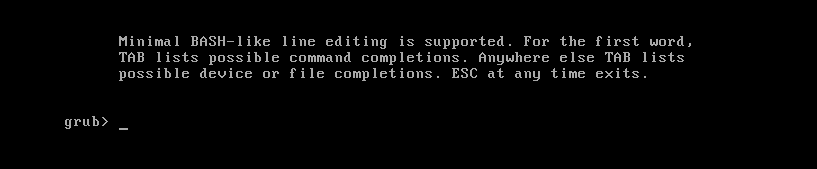
Resolution
- Important note: the location for the
grub.cfgfile can be multiple:- On UEFI systems, it will be
/boot/efi/EFI/redhat/grub.cfg(EFI partition) but also/boot/grub2/grub.cfgstarting with RHEL9 (/bootpartition), that's why we recommend always specifying/etc/grub2-efi.cfg. - On BIOS systems, it will be
/boot/grub2/grub.cfg, we recommend always specifying/etc/grub2.cfg.
- On UEFI systems, it will be
- If system is Up and running, start with Filesystem check step below. If the system is in the
grub>prompt follow the instructions below:
Booting into rescue
-
Use rescue media to gain full access to the system.
-
Enter the
chroot:# chroot /mnt/sysimage
File System Check
-
Confirm whether there was a filesystem recovery or not:
-
Use the
findmntutility to identify the device corresponding to/bootdevice, and/boot/efion UEFI systems:# findmnt /boot -o SOURCE -n /dev/vda1 -
If the command returns no output, it means the system is not in UEFI:
# findmnt /boot/efi -o SOURCE -n <empty> -
For each device listed, check for any error being detected:
# dmesg | grep vda1 [ 1.802984] vda: vda1 vda2 [ 4.268065] XFS (vda1): Mounting V5 Filesystem [ 4.272306] XFS (vda1): Starting recovery (logdev: internal) [ 4.283319] XFS (vda1): Ending recovery (logdev: internal) -
In the example above, the XFS filesystem recovery was automatically performed, which indicates the system was rebooted abruptly without going to the full shutdown sequence.
-
If this is the case, there is no need to proceed further, the file system should be repaired, then please reboot and check if grub menu is displayed.
-
If the affected file system is the EFI partition, as shown in the example below, proceed with fixing the file system and continue the procedure:
# dmesg | grep sda1 [ 27.252274] FAT-fs (sda1): Volume was not properly unmounted. Some data may be corrupt. Please run fsck. # fsck.vfat -v /dev/sda1 -
Otherwise, continue the procedure.
-
-
Rebuilding the Grub configuration file
-
For standard BIOS Installations:
# cp -v /boot/grub2/grub.cfg /boot/grub2/grub.cfg-Backup # grub2-mkconfig -o /etc/grub2.cfg -
For standard UEFI Installations:
# cp -v /boot/efi/EFI/redhat/grub.cfg /boot/efi/EFI/redhat/grub.cfg-Backup # grub2-mkconfig -o /etc/grub2-efi.cfg -
Additional step for RHEL 9: To recover a deleted
/boot/efi/EFI/redhat/grub.cfg, it's required to reinstallgrub2-commonwhich triggers ascriptletthat generates/boot/efi/EFI/redhat/grub.cfg:# dnf reinstall grub2-common -
Reboot the server with the hard disk and confirm GRUB presents its menu again.
Additional Notes
-
In case File System Check shows the system was rebooted abruptly.
-
Check your update procedure to avoid doing so, otherwise the issue may occur again in the future.
-
If your update procedure uses
rebootcommand, check that you don't have any 3rd party service running on the system that would abruptly reboot the system during shutdown. -
To do so, you may configure the Persistent Journal , perform a reboot and confirm that all file systems got properly unmounted through checking the journal for previous boot.
-
If no message got displayed, this indicates the shutdown sequence was not performed entirely, carefully check the journal content to try to see which service stopped last and must have forcibly rebooted the system. If in doubt, open a case on the Customer Portal referencing this solution to get help from us.
-
Root Cause
-
There are a few cases where
grub>prompt may appear. -
Either
grub.cfgfile is missing or empty- This may occur if the file got accidentally deleted or
/bootran out of space when performing a system update which installed a new kernel.
- This may occur if the file got accidentally deleted or
-
Or
grub.cfgfile is present but not seen by GRUB- This may occur if
/bootfile system journal and data are not in sync, because GRUB is not capable of recovering the file system journal. - This may occur when performing a system update which installed a new kernel and abruptly rebooting the system after the update without
/boothaving been unmounted properly.
- This may occur if
This solution is part of Red Hat’s fast-track publication program, providing a huge library of solutions that Red Hat engineers have created while supporting our customers. To give you the knowledge you need the instant it becomes available, these articles may be presented in a raw and unedited form.